Shopping Lists

Save time with your next order by using shopping lists! Below, we provide a step-by-step guide on how you can start using shopping lists.

Create a shopping list View shopping lists Set up notifications Order using shopping lists
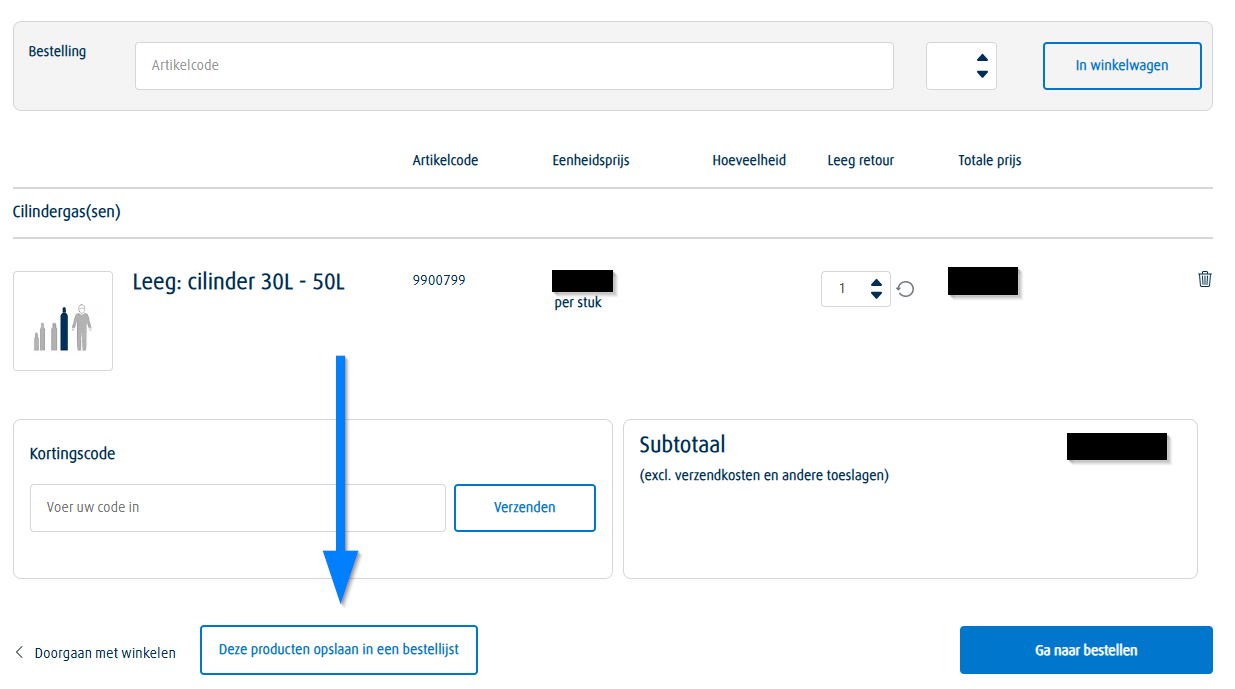
Screenshot of creating a shopping list

Create a shopping list

Have you previously placed an order with all the products you want in your shopping list? Then you can look up that order in the 'Orders & Deliveries' section and save it directly as a shopping list. Otherwise, you can create a new shopping list by following the steps below:

  1. Use the search bar or navigation to find the desired products and add them to your cart
  2. Then navigate to your cart and scroll down to add empty cylinders
  3. Added everything? In your cart, click 'Save these products in a shopping list'
  4. Provide a name and optional description, and your shopping list is ready!

View shopping lists

Through the 'My account' section, you can open the 'Shopping list' option. Here you can view all your saved shopping lists and modify or delete them.

To adjust a shopping list, click on the title. You can remove or add products (using product codes).

To delete a shopping list, click on the trash icon.
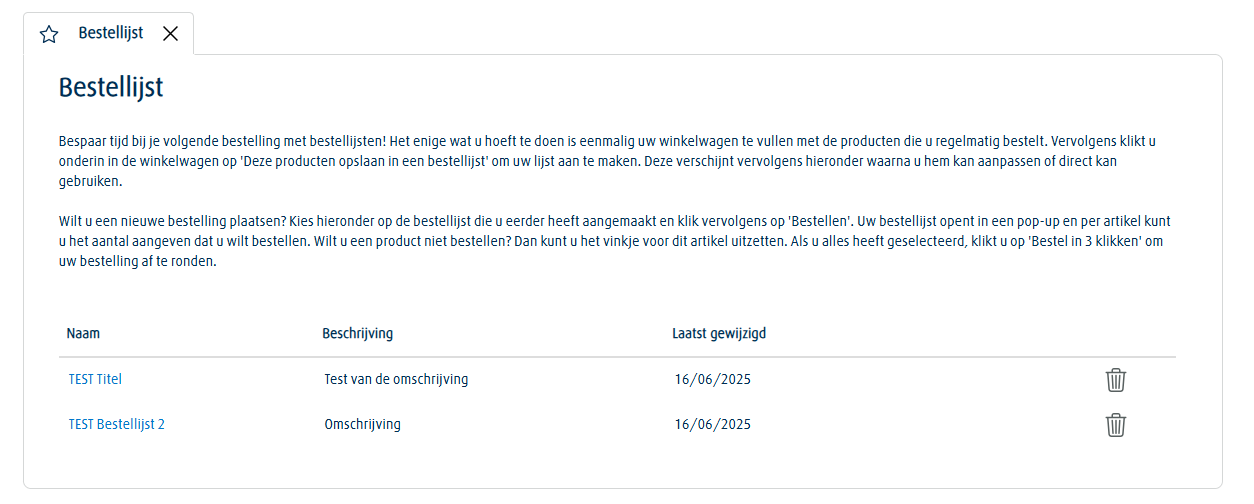
Screenshot of the shopping list functionality
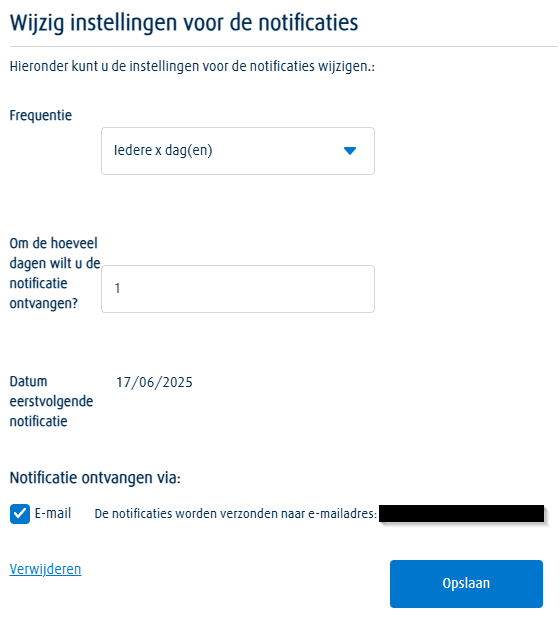
Screenshot of setting notifications for shopping lists

Set up notifications

For each shopping list, you can set notifications to receive emails that remind you when it's time to reorder. You can choose the frequency of the reminders.

How can I set notifications?

  • Directly when creating a shopping list, you can choose to receive notifications. Select how often you want to receive a notification and tick the email checkbox. Once you click save, the notification is set.

  • Already have an existing shopping list? Go to the 'Shopping list' section and click on the title of the shopping list. Below you will see 'Set notifications for this list.' A pop-up will appear where you can select the frequency. Don’t forget to tick the 'Email' checkbox and click save to set the notification.

You can modify the frequency of notifications at any time via the 'shopping list' section. You also have the option to delete notifications so you no longer receive reminders.

Order using shopping lists

It's very simple to place a new order using a shopping list. You can compare it to a grocery list, where you check off what you need.
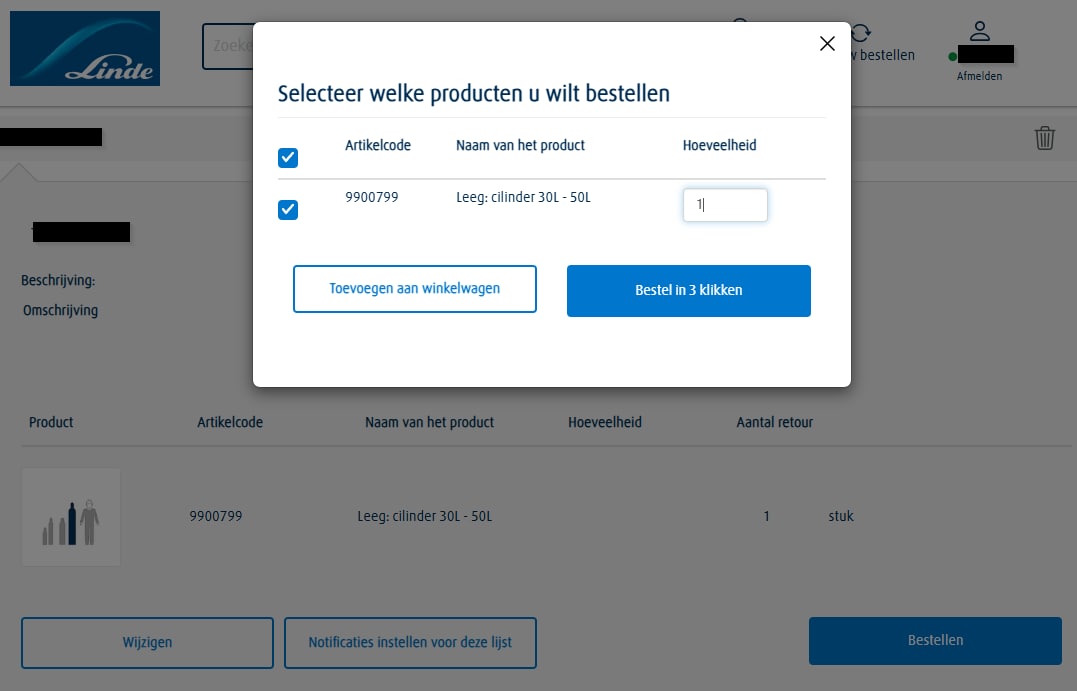
  1. Open a shopping list by clicking on its title, then click 'Order' at the bottom
  2. Select the products you want to order and/or adjust quantities for the products you need.
  3. Click 'Order in 3 clicks' to finalize the order process
  4. Select the delivery address and date, and provide instructions for the driver if needed.
  5. Review your order and place your order immediately.
  6. You will receive a confirmation email within a few minutes.
Screenshot of adding products from a shopping list